Leaderboard




.thumb.png.74019c1719febfc3dc44b205df4b5e44.png)
Popular Content
Showing content with the highest reputation on 09/29/23 in all areas
-
2 points────────────── PREMIUM SUITE ────────────── ─────────────── FREE / VIP+ ─────────────── ──────────────────────────────────────────────────────────── ⌠ Sand crabs - $4,99 | Rooftop Agility - $5,99 | AIO Smither - $4,99 | AIO Cooker - $3,99 | Unicow Killer - £3,99 | Chest Thiever - £2,99 | Rock crabs - $4,99 | Rune Sudoku - $9,99 ⌡ ⌠ AIO Herblore - FREE & OPEN-SOURCE | Auto Alcher - FREE | Den Cooker - FREE | Gilded Altar - FREE | AIO Miner - VIP+ ⌡ ──────────────────────────────────── What is a trial? A trial is a chance for you to give any of my scripts a test run. After following the instructions below, you will receive unrestricted access to the respective script for 24 hours starting when the trial is assigned. Your trial request will be processed when I log in. The trial lasts for 24 hours to cater for time zones, such that no matter when I start the trial, you should still get a chance to use the script. Rules: Only 1 trial per user per script. How to get a trial: 'Like' this thread AND the corresponding script thread using the button at the bottom right of the original post. Reply to this thread with the name of the script you would like a trial for. Your request will be processed as soon as I log in. If i'm taking a while, i'm probably asleep! Check back in the morning Once I process your request, you will have the script in your collection (just like any other SDN script) for 24 hours. Private scripts: Unfortunately I do not currently offer private scripts. ________________________________________ Thanks in advance and enjoy your trial! -Apaec.2 points
-
👑CzarScripts #1 Bots 👑 👑 LATEST BOTS 👑 If you want a trial - just post below with the script name, you can choose multiple too. 👑 Requirements 👑 Hit 'like' 👍 on this thread1 point
-
1 pointView in store $5.99 for lifetime access _____________________________________________________________ Key Features: Progressive mode - The script will traverse the xp-optimum course for your current level; walking to the next course as your level increases. Reliability - The script was developed and rigidly tested with superior reliability in mind. Human replication - Designed around human simulation - behaviour tuned to replicate common rooftop play styles. Alching / Magic Imbue - The script can be configured to High/Low Alch items, or cast Magic Imbue as it traverses the course. Target system - Can be optionally configured with a target. Once this target is achieved, the script will stop. Available targets (variable λ): Stop when λ agility exp gained. Stop when agility level λ reached. Stop when λ magic exp gained. Stop when magic level λ reached. Stop when λ minutes passed. Healing - The script will consume edible items in your inventory to restore health, stopping if you run out of food. Mark of Grace looting - All marks of grace are looted while the script traverses the rooftop. Randomisation - All thresholds (including but not limited to Run energy and Critical Hp) are dynamically randomised. Energy restoration - The script will consume energy restoring items/potions when needed, provided they are available in the inventory. Web-Walking - The script utilises the OSBot Web to navigate the OSRS map, meaning it can be started from almost anywhere. Course detection - If you are on/near a rooftop course before setup, the course will automatically be loaded into the GUI. Error correction - The script will detect when it has made a mistake (e.g. climbed ladder in seers' bank) and will attempt to return to the course. ...and many more! Supported Rooftops: (Level 10) Draynor ✓ (Level 20) Al-Kharid ✓ (Level 30) Varrock ✓ (Level 40) Canifis ✓ (Level 50) Falador ✓ (Level 60) Seers' Village ✓ (Level 70) Pollnivneach ✓ (Level 80) Rellekka ✓ (Level 90) Ardougne ✓ Things to consider before trying/buying: Avoiding bans - while I have done my utmost to make the script move and behave naturally, bans do occasionally happen, albeit rarely. To minimise your chances of receiving a ban, I would strongly suggest reviewing this thread written by the lead content developer of OSBot. If you take on board the advice given in that thread and run sensible botting periods with generous breaks, you should be fine. That being said, please keep in mind that botting is against the Oldschool Runescape game rules, thus your account will never be completely safe and you use this software at your own risk. Web-walking - alongside a network of paths, the script moves around with the OSBot web-walking system, using it when in unknown territory. While it has proven very reliable, there are naturally some areas for which the web-walker may struggle. As a result, prior to starting the script, I would strongly recommend manually navigating your player to/close to the desired rooftop course. Progressive mode - the script features 'Progressive mode' which will cause the script to advance rooftop courses as you level up. Progressive mode relies on the aforementioned web-walking system for inter-rooftop navigation. Consequently, I would highly recommend monitoring the script as it traverses between courses to ensure the web-walking process correctly executes. Healing & Energy restoration - the script will automatically heal or restore run energy when needed. It will do so by consuming items in the inventory - this script will not bank. For optimal exp rates, I would strongly suggest keeping energy restoring items in the inventory (energy/super energy/stamina/fruits/summer pies/purple sweets/...). To prevent the script stopping prematurely, bring a few bites of food along. Using magic - The script supports the periodic casting of a magic spell while traversing a course to maximise experience rates. To determine whether or not you can cast a spell, the script checks your magic level as well as which runes are in your inventory and which stave you have equipped (if any). It is worth noting that, at this time, the script does not recognise any of the following items as rune sources, so avoid using them while running this script: Bryophyta's Staff, Tome of Fire, Rune Pouch. Script trials: I believe that trying a script before buying is paramount. After trying the script, hopefully you will be convinced to get a copy for yourself, but if not you will have gained some precious agility experience! If you're interested in a trial, please follow the instructions on my trials thread which can be found here. Gallery: Review (by Eduardino): Start up GUI (Graphical User Interface): Paint (optional, movable and self-generating): User screenshots: Testimonials:1 point
-
1 pointBefore buying, please ensure you check-out with the correct script. Swapping scripts is not possible. View in store $4.99 for lifetime access Features: All spawns - Supports every multi-crab spawn point both along the south coast of Zeah and Crab Claw Isle All combat styles - Supports Ranged, Magic and Melee combat training. The script will not bank runes of any type Saving GUI - Intuitive, re-sizeable and fully tool tipped GUI (Graphical User Interface) allowing you to tailor the script session to your needs, with configuration saving / loading Human replication - Designed with human simulation in mind - multiple options to replicate human behaviour available in the GUI Setup customiser - Inventory customiser allows you to visually see your trip setup CLI support - The script can be started from the command line All potions - Supports all relevant potion types (including divine potions!), multiple potion types simultaneously and varying potion ratios Healing in a range - Dual slider allows you to specify a range within which to consume food. Exact eat percentages are calculated using a Gaussian distributed generator at run time Healing to full at the bank - When banking, the script will eat up to full hit points to extend trip times Safe breaking - Working alongside the OSBot break manager, the script will walk to safe place approximately two minutes before a break starts to ensure a successful log out Anti-crash - Smart crash detection supports multiple anti-crash modes (chosen in the GUI): Hop worlds if crashed - the script will walk to a safe place and hop worlds until it finds a free one, at which point it will resume training Force attack if crashed - the script will fight back and manually fight pre-spawned sand crabs until the crasher leaves Stop if crashed - the script will walk to a safe place and stop Ammo and Clue looting - Clue scroll and Ammo looting system based on a Gaussian-randomised timing scheme All ammo - Supports all OSRS ammo types and qualities Spec activation - Special attack support for the current weapon to maximise your exp per hour Auto-retaliate toggling - The script will toggle auto-retaliate on if you forget Move mouse outside screen - Option to move the mouse outside the screen while idle, simulating an AFK player switching tabs Refresh delay - Option to add a Gaussian-randomised delay before refreshing the chosen session location, simulating an AFK player's reaction delay Visual Paint and Logger - Optional movable self-generating Paint and Timeout Scrolling Logger show all the information you would need to know about the script and your progress Progress bars - Automatically generated exp progress bars track the combat skills that you are using Web walking - Utilises the OSBot Web alongside a custom local path network to navigate the area. This means the script can be started from anywhere! Safe banking - Custom banking system ensures the script will safely stop if you run out of any configured items Safe stopping - Safely and automatically stops when out of supplies, ammo or runes Dropping - Drops useless/accidentally looted items to prevent inventory and bank clutter All food - Supports pretty much every OSRS food known to man. Seriously - there's too many to list! ... and many more - if you haven't already, trial it! Things to consider before trying/buying: Mirror mode - currently there appear to be some inconsistencies with behaviour between Mirror mode and Stealth Injection meaning the script can behave or stop unexpectedly while running on Mirror. I would urge users to use the script with Stealth Injection to ensure a flawless experience! Since Stealth Injection is widely considered equally 'safe' to mirror mode and comes with a host of other benefits such as lower resource usage, this hopefully shouldn't be a problem. Using breaks - the script supports breaks and will walk to a safe place ready to log out approximately two minutes before a configured break starts. However, upon logging back in, your spot may no longer be open. If you configure the crash mode to be either 'Hop if crashed' (default) or 'Stop if crashed', this will not prove to be a problem. However if using 'Force attack if crashed', the script will attempt to take back the spot by crashing the occupying player and manually attacking spawned sand crabs. Be aware that players have a tendency to report anti-social behaviour such as this! Avoiding bans - while I have done my utmost to make the script move and behave naturally, bans do occasionally happen, albeit rarely. To minimise your chances of receiving a ban, I would strongly suggest reviewing this thread written by the lead content developer of OSBot. If you take on board the advice given in that thread and run sensible botting periods with generous breaks, you should be fine. That being said, please keep in mind that botting is against the Oldschool Runescape game rules, thus your account will never be completely safe and you use this software at your own risk. Setting the script up - I have done my best to make the GUI (Graphical User Interface) as intuitive as possible by making all options as self explanatory as I could, however if you are not sure as to what a particular setting does, you can hover over it for more information. If that doesn't help, just ask on this thread! Web-walking - alongside a network of paths, the script moves around with the OSBot web-walking system, using it when in unknown territory. While it has proven very reliable, there are naturally some areas for which the web-walker may struggle. As a result, prior to starting the script, I would highly recommend manually navigating your player close to the sand crabs bank, however in practice, anywhere on Zeah should be fine. Script trials: I believe that trying a script before buying is paramount. After trying the script, hopefully you will be convinced to get a copy for yourself, but if not you will have gained some precious combat experience! If you're interested in a trial, please follow the instructions on my trials thread which can be found here. Gallery: Start up GUI (Graphical User Interface): Paint (optional, movable and self-generating): User screenshots: Recent Testimonials: Starting from CLI: This script can be started from the command line interface. There is a single parameter, which can take two (and only two) values: 'gui' or 'nogui'. 'gui' will start the script and show the gui, 'nogui' will skip the GUI setup and start the script using your save file as the configuration. To start from CLI with 'nogui', the script requires a valid GUI save file to be present - if you haven't already, start the script manually and configure the GUI to suit your needs. Then hit 'Save configuration' and in future starting from CLI will use these configured settings. The script ID is 886. Example CLI startup: java -jar "osbot 2.4.137.jar" -login apaec:password -bot apaec@example.com:password:1234 -debug 5005 -script 886:nogui1 point
-
OSBot Bot Manager: The Complete Guide Written By: @Muffins Introduction OSBot's Bot Manager is an AIO (all-in-one) bot management tool that can effectively and efficiently help you, the OSBot Community, manage your bot farms with ease. This tool contains features such as Account Importing, Task Scheduling, Proxy Checking, Custom Client Configurations, Script Queueing, and Third-Party Integrations such as Discord Webhooks so that you can keep an eye on your bot farms actions from anywhere! Requirements The Bot Manager Requires Java 8, 11, or 17 to be installed on your system. Java 8 is the preferred version because it is also the only version that works with Mirror Mode. Along with this, the following ranks have access to use the Bot Manager - Similar to Lifetime Sponsor, Unlimited Usage - Similar to VIP (Monthly), Unlimited Usage - Current VIP+Sponsor's have Manager Lite | 1 Acc, 3 Tasks, 1 Schedule Setup Informations & Instructions Initial Setup Initial setup should be as simple as launching OSBot Version 2.6.77 OR LATER, and selecting the "Bot Management" tab located at the bottom of the OSBot Launch Screen. Alternatively, you can launch the Bot Manager with the following CLI arguments, see an example below. java -jar OSBotVersion.jar -autologin -manager Adding Accounts Accounts can be imported either from a text file with this format username:password:pin OR username:password Added support for importing Jagex accounts with the following formats: -- email:pass:character_name -- email:pass:character_name:pin -- email:pass:character_name:ip:port -- email:pass:character_name:pin:ip:port -- email:pass:character_name:ip:port:username:pass -- email:pass:character_name:pin:ip:port:username:pass Alternatively, you can manually input account information into the bot manager Groups Account Groups are useful for launching multiple accounts or editing multiple account arguments at the same time. For example, I can have a Woodcutting group, Looter group, Vorkath group, GDK group, and edit all of the accounts in the group (or start them) at the same time. Assigning accounts to a group is as simple as clicking the section under the Group column in the Bot Manager and assigning to a group Editing/Launching an account group is as simple as selection the Group Action button and selecting the specified action you want to do. For example, setting a specific proxy for all of my GDK accounts would look like thisAnd Starting All of my Woodcutting Accounts would look like this Tasks Tasks can be created and be applied to multiple accounts, think of launching a script with specific args for multiple accounts Script Queueing Script queues allow the user to queue/chain different scripts together based on what they'd like to do. For example, I want to get my Mining to 50, and then get my Firemaking to 50, I can chain scripts together based on args I set to run back-to-back. I can make a queue, and then set that as a task. Schedules Schedules are used for creating specific times that you want a task or script to run. It can be at a specific time every day, every other day, etc. Proxies Adding Proxies Proxies can be added on the Proxies tab either manually OR by using the Import Proxies feature with the format ip:port:user:pass Proxy Checking You can also check to make sure your proxies are valid and working by using the Check Proxies button as seen below. Client Configurations Client Configuration You can customize your configurations to reduce resource usage, disable rendering, disabling randoms handler and even start your accounts without opening their clients! This also is the place where you select if you want a client to launch in mirror mode or in stealth mode. If using different configurations you can identify them by giving them their own name. Discord Webhooks CURRENTLY IN DEVELOPMENT Conclusion In Conclusion, the OSBot Bot Manager is your one stop shop for all of your botfarm needs. It will have continuous development and improvements to make it the most user friendly and efficient it can be.1 point
-
1 point
-
Thanks! I'm still kind of in the middle of learning Java, been putting it off for years now. Guess I finally have a reason to learn it lol1 point
-
I believe this is what you are looking for in your GUI class^^ setDefaultCloseOperation(JFrame.DISPOSE_ON_CLOSE);1 point
-
1 point//do we have any coins if(getInventory().contains("Coins")) { //do we have >= 100k coins if (getInventory().getAmount("Coins") >= 100000) { log("we got the $$$"); } }1 point
-
1 point
-
I am looking for someone to legit train my account, it will be a lot of services over the next few months. Please post here or dm me. I will require a lot of vouches.1 point
-
1 point
-
1 point
-
1 point
-
1 pointHey Khal, trial please if you don't mind. Another one I'm interested in. Thank you! Edit: Nevermind, I just went ahead and bought it. Thanks anyway [:1 point
-
1 pointplease include herb and seed sack support too! didn't see that talked about for next update1 point
-
1 point
-
1 pointDownloading the Client Note: If your browser says it cannot be downloaded securely do not fret, it's a false positive Launching the Client Note: Other java versions will launch OSB but the recommended version is JRE8 so you can access all features including Mirror If you do not want to install Java 8 to your PATH download the file here and add it to your folder with OSBot.jar and create a bat file .\jre-1.8\bin\java.exe -jar "osbot 2.7.4.jar" Adding a Proxy Note: If you have have multiple proxies consider using the bulk import option from the bot management tab OSBot supports both SOCKS5 & HTTP with SOCKS5 being the preferred proxy Adding an Account & Logging In Note: This all can be done from CLI as well if you prefer that over the GUI method attached is a table made by @Alek Example bat files: Basic CLI argument to launch OSBot with no script selected java -jar "OSBot 2.7.4.jar" -dismissrandoms -newmouse -allow lowcpu -autologin -bot LOGIN@EMAIL.COM:PASSWORD:PIN -proxy IP:PORT:LOGIN:PASS -world XXX The CLI arguments below will launch the client using Java8 in the folder located with the OSBot.jar, launch @Czar's Perfect Runecrafter with the file "Bloods1" .\jre-1.8\bin\java.exe -jar "osbot 2.7.4.jar" -dismissrandoms -newmouse -allow lowcpu -autologin -bot LOGIN@EMAIL.COM:PASSWORD:0000 -script 778:"Bloods1" -world 484 -proxy IP:PORT:USER:PASS Starting a Script Scripts purchased from the SDN will automatically be added to the client to add private/local scripts navigate to %USERPROFILE%\OSBot\Scripts\ Setting Breaks Within the Client Note: Some of our script writers have custom break managers built into their scripts and will not be covered in this guide Script Queue Manager This will run Perfect Blast Furnace with the CLI args Steel for 180-240 minutes, switch to Mithril for 180-240 minutes, and then finish off with GOTR for 180-240 minutes Note: Make sure you create and save the CLI files for the scripts you want to run Bot Management OSBot has a built in bot manager to help ease access and deployment of your farm. It has account importing, bulk proxy management + proxy checker, task scheduling, custom client configurations, stealth + mirror support, script queues, and discord webhooks so you can monitor your farm from anywhere. A complete guide is done by @Muffins and can be found here VIP comes with a LITE version of the management tool included in your license which allows you to 1 client, 1 schedule, 3 tasks, the manager is available for purchase here FAQ & Troubleshooting Nothing happens when I open OSBot Possible fixes: jarfix - Clean java reinstall - CLI launch with java in OSB directory Confirm you have Java installed by opening up command prompt (WIN+R -> CMD) In command prompt type in java -version The output should have "java version "1.8.0_381"" Resolution scaling on Windows 10/11 Locate the directory of your java.exe (Open OSB -> Task Manager -> Right Click Java(TM) Platform SE -> Open File Location Right click javaw.exe & java.exe for good measure -> Properties Compatibility -> Settings -> [X] Disable display scaling on high DPI settings Bypassing the "Unable to create advertisement" when opening multiple OSRS Clients Create a new text/bat file and paste the code below copy the second line for as many clients as you would like and paste it before the exit @echo off start C:\Users\administrator\jagexcache\jagexlauncher\bin\JagexLauncher.exe oldschool exit I cancelled automatic renewal but was still charged You'll need to login to Paypal -> Settings -> Preapproved payments -> Under MERCHANT select "Meire & Brito Automation" -> Under STATUS -> Cancel -> YES What is Mirror Mode? Rather than injecting into the Runescape client, it Mirrors the Official OSRS Game Client which is available for download here Can I use OSBot with a Jagex Account? Yes! Using Mirror Mode & selecting the legacy client and NOT runelite How do I remove ads from the website & client? Purchasing VIP from the Store, not to be confused with the Monthly & Lifetime Manager - You'll need to purchase VIP or Sponsor1 point
-
1 pointany chance i can get a free trial? id like to test it out and see how it runs. please and thankyou1 point
-
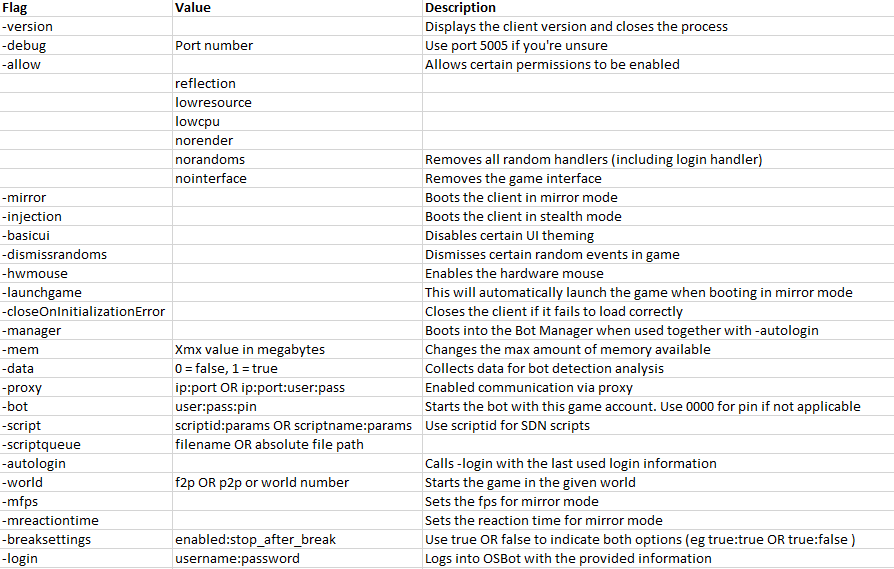
1 pointTo start OSBot through command-line, open up terminal/cmd on your operating system. Ensure your working directory in command-line is at the location where your OSBot jar is located. For instance if you are on Windows and the jar is on your Desktop, then you must type "cd Desktop" first. For instance: If you are looking to only start OSBot through command-line to see detailed output, please use the following snippet: java -jar "osbot 2.4.145.jar" -debug 5005 You must edit the information inside the quotes to what your jar file is named. If you are in the wrong directory or you typed in an incorrect filename, you will get an error: "Error: Unable to access jarfile osbot 2.4.145.jar".
 1 point
 -
New discord is up now!!1 point