
Valid
Java Lifetime Sponsor
-
Joined
-
Last visited
Everything posted by Valid
-
-
-
Valid's Gold Safety of your account and ease is our priority. Selling Runescape 2007 Gold: $ 0.34 /m Contact: - Discord: Valid#0891 // 115489734435799043 - Skype: live:valid.rs Payment options: - PayPal - CryptoCurrencies [BTC/ETH] & more coming soon...
-
✅ Valid ✅ Safety of your account and ease is our priority. Buying Runescape 2007 Gold: $ 0.28 /m Contact: - Discord: Valid#0891 // 115489734435799043 - Skype: live:valid.rs Payment options: - PayPal - CryptoCurrencies [BTC/ETH] & more coming soon...
-
Fixed, problem lied in I was trying to get the Username, with Runescape the spaces are different, so had to replace ("\\h", " ")
-
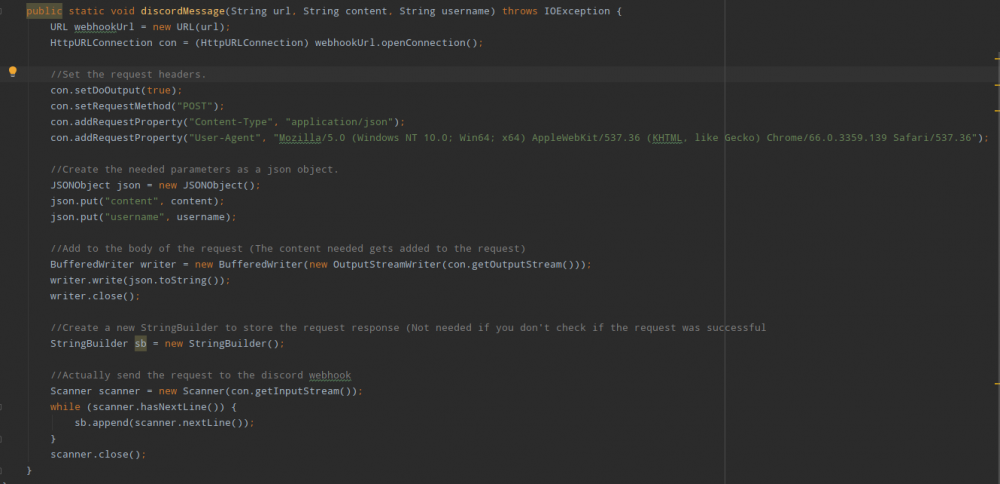
I'm trying to implement Discord Webhooks into my script using the JSON library and everything followed by this tutorial: Medusa's Post

-
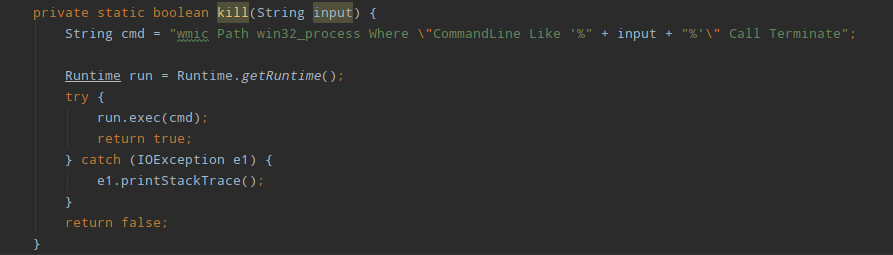
Hi there, just making a small updated version of the snippet Naked made: [ORIGINAL] Naked's Post as this didn't work for me however the following code did: Pastebin - Java code How does it work? When you wish to kill the client use: kill(input); and instead of input choose a String, which you've used in a CLI command to launch your bot! java -jar OSBot.jar -login Name:password You could do: kill(OSBot); kill(Name); kill(password); --- But also the proxy, script all parameters can be found here: CLI Commands Table Hopefully this helped someone out
-
Please add Divine Potion support.