






Abide
Scripter II
-
Joined
-
Last visited
-
-
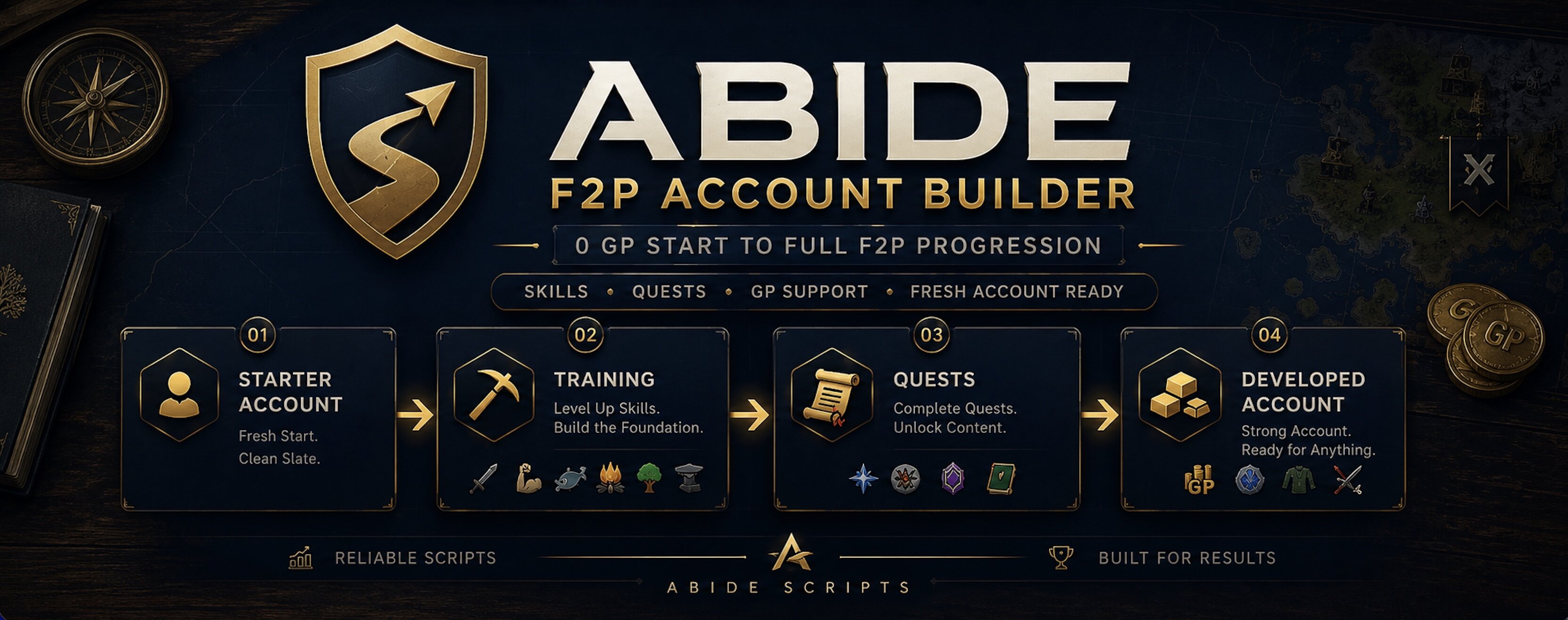
Abide F2P Account BuilderAbide F2P Account Builder is an all-in-one F2P progression script that can be started on a fresh account immediately after Tutorial Island — NO STARTING GOLD REQUIRED. It rotates through training, quests, and account-building tasks automatically, handling banking, progression decisions, and task switching so your account keeps moving forward with minimal setup. What it trains / runsSkills: All F2P Skills Quests: Rune Mysteries, Romeo & Juliet, Cook’s Assistant, Sheep Shearer, Imp Catcher, Doric’s Quest, Goblin Diplomacy, Restless Ghost, Witch's Potion Events: Adventurer Jon reward claims, optional cowhide tanning flow after combat sessions, optional bone burying for combat training Core FeaturesSmart task rotation Rotates across enabled tasks with session timers (min/max ranges) so training doesn't get stuck on one skill. Per-skill controls Enable/disable each skill and set cap levels per skill from setup. Quest controls + quest status in setup Turn quests on/off individually and see whether each is not started, in progress, or completed. Starting task option Pick a first task (or random), then let it continue rotating automatically. Bank-first workflow Handles banking and transitions between tasks, including closest-bank behavior when needed. Progression-aware behavior Handles tool/gear/supply progression and switches tasks when requirements aren’t met instead of getting stuck. Combat extras Optional bone burying and optional leather/tanning/ge flow after cow combat sessions. Live overlay + end-of-session summary Runtime, current task/time, next break info, combat/total gains, per-skill gains on overlay, plus stop summary logs. Setup (quick start)Start the script and open setup. Set your session timer range (min/max minutes per task). Choose your first task (or Random). Enable/disable skills and set level caps. Enable the quests/events you want, then click Start script. Requirements / NotesFresh-account friendly — can start right after Tutorial Island with 0 gp. Built-in gold support loop — after eligible combat sessions, the script will use collected cowhides, tan them into leather, and sell for GP to fund ongoing account progression. Hands-off rotation — automatically rotates across enabled training/quest activities based on your setup and account state. Breaks — this script uses OSBot’s built-in break system; configure breaks in your client settings. Support & FeedbackIf you run into a problem or want to suggest a feature, join Discord to discuss what happened or what you’d like added. When reporting an issue, include your setup (enabled skills/quests, caps, session timer, current task) and a short description of what the script was doing — that makes it much easier to track down. Join the Discord FAQQ: Can I force only a single skill? Yes — disable the rest. Q: Can I disable questing? Yes, each supported quest can be toggled individually. Q: Does it show progress while running? Yes — overlay shows runtime, active task, and skill/level gains, total level, current gold, gold income.
-
Abide Water Filler — free utility script by Abide. It banks at Varrock East, withdraws your chosen empty containers (Bucket, Vial, or Jug), walks to the Varrock East fountain, and fills them by using the empties on the fountain. After you confirm setup, it shows session time, how many you’ve filled this session, and an approximate fills per hour. Features Item choice — Pick Bucket, Vial, or Jug in the setup GUI (default Bucket). Banking — Uses Varrock East bank: walks there when needed, opens the bank, deposits everything, then withdraws all of your chosen empty items (must be in the bank). Fountain run — Walks to the Varrock East fountain area and fills the item with water using the Fountain. Session stats — Time running, items filled this session, items filled/hour (session-wide average rate). Stop summary — On script stop, logs a short session recap (item, filled count, runtime, ≈/hr) when the script was actually started. Requirements / notes Supplies — You must have the chosen empty item (Bucket / Vial / Jug) in the bank when the script tries to withdraw; otherwise, it stops and asks you to supply them. Clean banking — Withdrawing works best if the script can deposit everything first; avoid extra items you don’t want deposited if that conflicts with how you play (script deposits all before pulling empties). Stats — “Filled” and “/hour” follow session totals and session time after you press Start script; restarting setup resets session counters. How to use Put plenty of your chosen empty containers in the bank (or ensure the script can bank them). Start the script. Choose Bucket, Vial, or Jug from the dropdown. Click Start script. Watch session stats on the overlay (time, filled count, fills/hour) and normal script logs when you stop. Updates, support & more scripts Join the Discord
-
Free mining script by Abide. Mine rune essence in the essence mine: walks to Varrock East bank, uses Aubury at the magic shop to teleport in, mines until full, banks, repeats. Pick your pickaxe in the GUI (Bronze → Rune). Built-in overlay shows Mining XP, XP/hr, essence collected, and essence/hr. Features Pickaxe selection — Bronze through Rune from the setup panel; script equips when your Attack level allows it. Banking — Varrock East; deposit essence and keep only your chosen pickaxe. Teleport — Walks to Aubury and uses Teleport to enter the essence mine. Mining — Targets “Rune Essence” rocks inside the mine; walks between essence areas when needed. Leaving the mine — Handles exiting when you need to bank (portal/exit flow). Session stats — Mining XP gained, approximate XP/hr, essence collected, approximate essence/hr (after you hit Start). Requirements/notes Account access: The essence mine teleport through Aubury requires Rune Mysteries. If that quest isn’t completed, the script will stop. Gear: The pickaxe you select must exist in the bank, inventory, or equipment. If it isn’t found, the script stops with a message. Attack: High enough Attack for the pickaxe you choose (same as wielding it in-game). Starting clean: For banking/setup, inventory should mainly be your pickaxe; the script deposits everything except the selected pickaxe when banking. How to use Put your chosen pickaxe in the bank or have it ready in inventory/equipment. Start the script; open the GUI. Choose your pickaxe from the dropdown. Click Start script. Let it walk to Varrock East / Aubury / mine — watch the overlay for stats. Updates, support & more scripts Join the Discord
-
Hey Patrick could I get a free trail?

