
V1TAL1TY
Members
-
Joined
-
Last visited
-
Guess we're out of ideas
-
Right clicked OSbot and selected properties. Here's what it says: C:\Users\MY NAME\Desktop
-
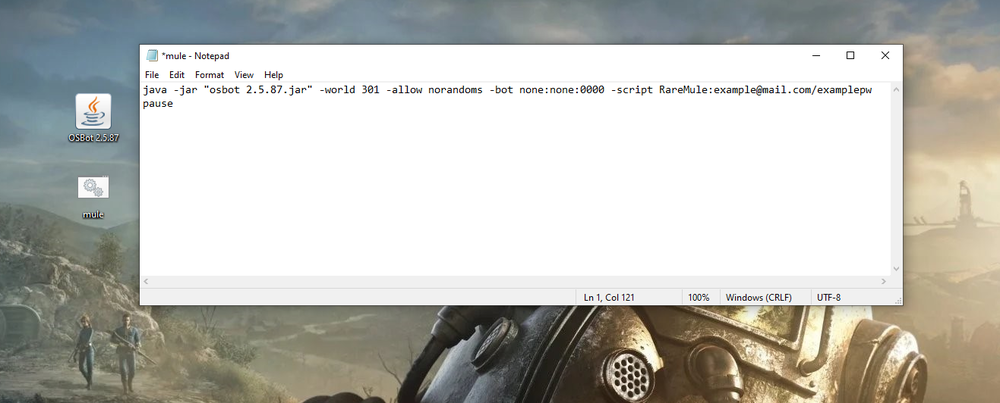
Yes I've placed them in the default scripts folder as he instructed This is how I've placed things on desktop. Just upgraded to VIP and still the same.
-
Hi I'm trying to get a private script to work. My. bat file is supposed to open 2x clients: 1 for herb and 1 for muling but doesn't. It works fine on scripter's computer but not mine. Thanks.
-
V1TAL1TY changed their profile photo
-
People who have experience with private scripts, which is your go-to site for buying them? I'm probably going to buy my first very soon.
-
Thanks a lot. I appreciate this.
-
Could you explain this part please? I'm trying to learn as much as I can.
-
-
They have +50 100% positve feedback. What do you think?
-
[70 def 80+range/magic animal mag done 60 agility 43 prayer includes avas backpack] ^ seller wants to sell this for 35-45m. Is this a fair price? Thanks.
-
Attack Level 50 Strength Level 70 Defence Level 60 Ranged Level 50 Magic Level 50 Prayer Level 43 Agility Level 50
-
Looking for 1x Barrows ready account with potential for more in the future. Reputable users only please.
-
Can I get a 24 hour trial please? Will it work for mining and banking rune essences? Thanks.