





joshua97
Members
-
Joined
-
Last visited
-
Hey Czar, I've tried to get the magic mode to work with mage gear in the Varrock sewers, at the little stream across from where the zombies are, just north of the entrance into the sewers. I can't get the script to stop moving my character directly in front of the zombies by going around the entire sewers, which is a shame because I want to sit across the water from them and hit them with mage! The F6 safe spot key isn't working, and also I try to select the fight zone and have the character stay in the fight zone, but once it has been selected the script sits there and doesn't do anything, unless I Don't set it and then the character moves around as I was saying before and then just ends up getting hit! It's very tiring and troublesome! I can Team-viewer the screen to you if you would like to show you what I mean, but I'm not sure how to get in touch with you! Help would be appreciated, thank you!
-
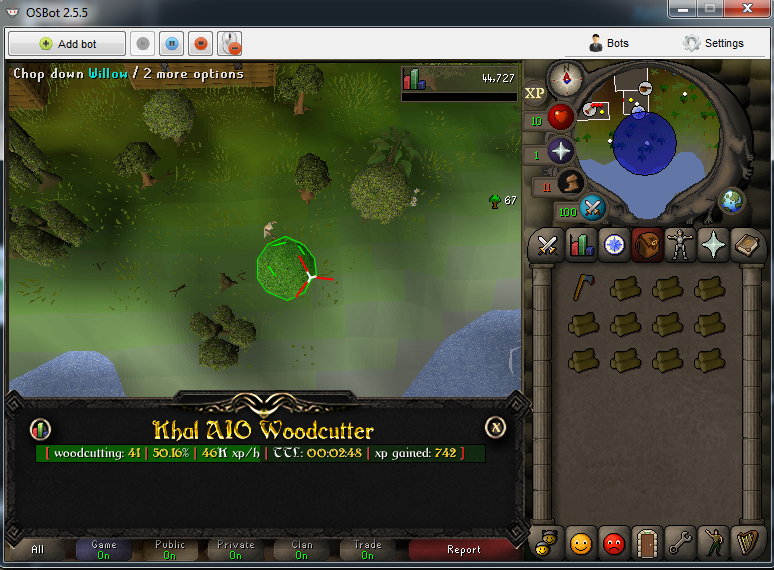
Nevermind @Khaleesi, I got banned already after 12 hours (20% of which was used in little pieces for breaks for realism, but no joy! Time to start again I guess) :')Purchased this script just now, and hoping to get it set up soon. I've tried to create a custom area to fight within, but unfortunately it still says calculating! Hopefully I'll get it to work properly really soon. ? Furthermore, when I try to turn the camera using the arrows, the game camera spins continuously without being able to stop it, I wonder what causes this? ? Thanks. Edit: It's a shame that I can't rotate the camera to check around the game world without being able to stop an infinite rotation =( Hopefully this can be looked at! Thanks.Edit: Now reached 65 woodcutting, without any issues - and take about 15 minutes break every hour and 15 minutes ? Khaleesi, do you recommend willows or maples for best XP per second for free players? Reply:Whole post ?:Quote below: My answer (which I tried to write and format correctly five times, but encountered issues with spoilers in quotes not opening): I'm sure people will be happy with the script, so onward to 99 woodcutting. ?joshua97 changed their profile photoMy thoughts: Edit: This edit was made as my character got to level 32 woodcutting from about 25 when I originally made this post. When cutting willows, the speed of the script (when used in Rimmington) is faster compared to the custom area which I wanted the script to cut within at the start of my usage. I will make another post regarding XP gains and the like once I've had a little bit more experience at Rimmington. Edit 2: Progress picture - Level 41 woodcutting, now using a Rune axe, cutting willows at an average of 46k XP per hour (maybe a slight over-estimate [Edit: indeed this was an over-estimate, but your XP will climb with levels of course.] because I haven't done the first log drop yet in this picture, I'd only just picked up the Rune axe).
 Please let me try the Czar Perfect Woodcutter! I'd be very grateful. ? How do I add your script to the client itself? Does it just appear as activated in my current scripts? Thank you in advance!


