vhdt
Members
-
Joined
-
Last visited
Everything posted by vhdt
-
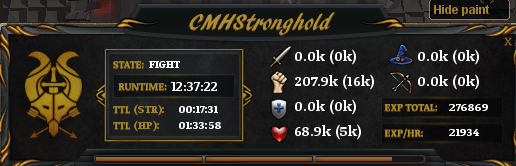
Bot is doing well. Here's a proggie.

-
Good job boys.
-
-
Thank you Impensus, for updating us about this, really appreciate it Will run the bot on b2p mode, if possible. Thank you Eric, for hope OSBot gets back to running smoothly soon.
-
That fixed it right up. I'll post a proggie (hopefully) later tonight. I've gotten from 40-70 range with this script It was a good first time script purchase for me
-
Samething is happening to me to. I think the walking broke last night.
-
Bought this script recently, I have mixed feelings about it. Upon start up my bot client gets hit with a spike of lag (I run mirror mode, I've run other scripts and the lag isnt nearly as bad. Imagine fps dropping to 10 upon start for this script), and the bot spends a lot of time doing nothing, but what I assume it is still "calculating". But when it does per chance manage to get past the start up problems it runs perfectly fine (I have to minimize the osbot and view my bot through the client it's hooked to, the lag goes down significantly). PS. I have also set the settings as previously stated in the thread.