aerospacedoor
Members
-
Joined
-
Last visited
Everything posted by aerospacedoor
-
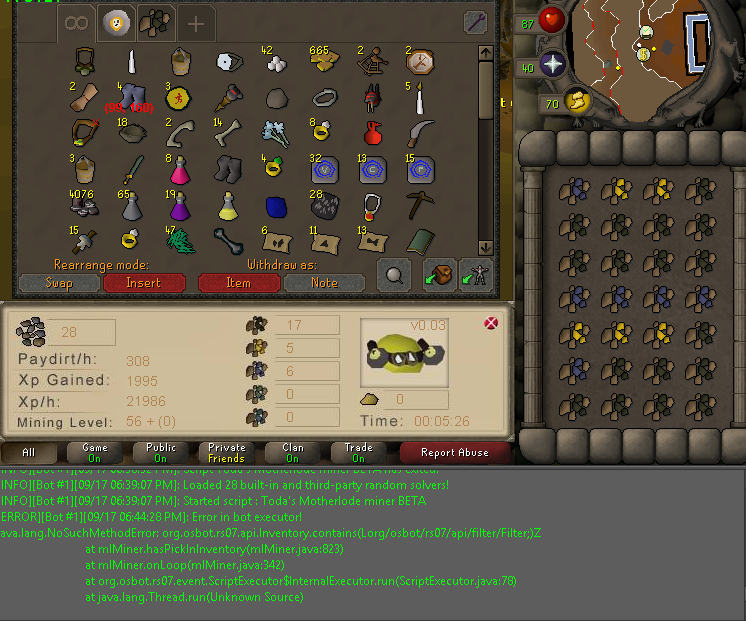
EDIT** I thought I had fixed my error until I found this, what does this mean?
-
I fixed the first error but that made another error here.
-
I am pretty sure that's one of the first things the guide i'm following instructed me to do.
-
Can some one please explain this red line for me. http://imgur.com/NjzSlnn
-
Thank you dude. Also if someone could explain this simply that would rule http://imgur.com/Y7WzV8h
-
Yea I noticed that after I posted. Why even take the time to point that out? how does that answer my question?
-
I might not need help by the time some one replies but I'm trying to learn myself a few things and so far this guide is awesome I understand like 80% I want to know what the different coloured text means. Like the yellow blue and green. Thanks.
-
stops working after it deposits inventory into the bank. Just stands at the bank. Other than that it's perfect to leave afk and babysit, nice script so far hopefully you iron out the kinks. edit* - Stops when level'd up. - stops every now and then whilst mining pay dirt ( haven't seen it when it happens ) - every now and then stops if you find 2 gold nuggets after washing pay dirt and doesn't have a full inventory. -Error when banking every time.