MachiaveIli
Members
-
Joined
-
Last visited
Everything posted by MachiaveIli
-
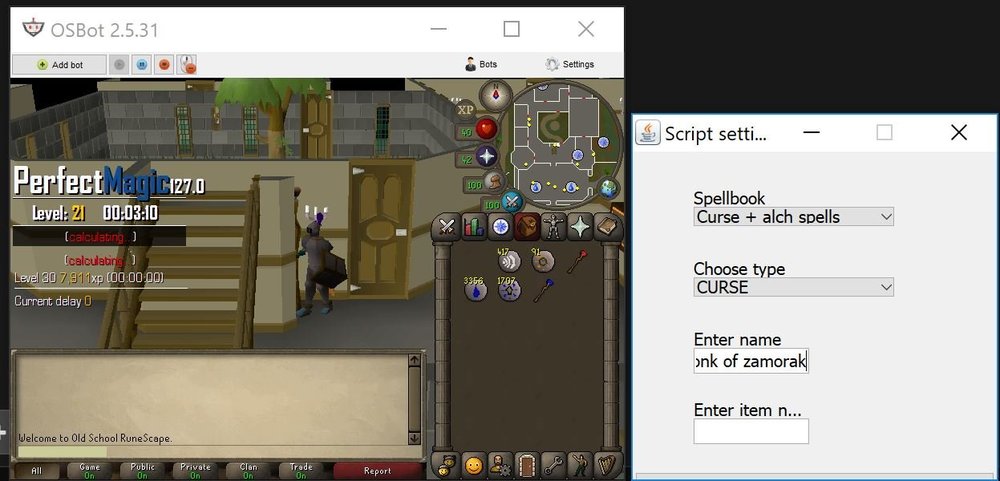
First time botter, purchased this script and I don't know a thing about what I'm doing and could use some help. There doesn't seem to really be a tutorial or manual so this is what I've got so far, because I can't seem to make this run. Downloaded Java fine, Run Java OSBot and run Stealth Injection, click launch, add my bot username and password, clicked continue. Client pops up and I log into OSRS. Click green button next to "Ad bot" and start the Perfect Magic Script. Trying to run a Curse repetition on the Monk of Zamorak in Varock castle. Select Spellbook, choose type, type in 'Monk of Zamorak' under name because that seems the thing to do. Item number doesn't seem to impact anything from what I can tell. click the top edge of the Start button that I can see (Have no idea how making the window bigger and buttons more visible). The script proceeds to use Curse one time.....and that's it. Doesn't go to use again no matter what I do, just stops and I can't figure out what to do make it repeat the process. I don't know what I'm not getting or how to go about learning the ins and outs of making this script do all its capable of. For all I know, it could be because I'm not using a Mirror as shown in the description. But again, I'm as nooby as it gets and could use some direction on how to operate this bot.