knifed faces
Members
-
Joined
-
Last visited
Everything posted by knifed faces
-
Bumped and Updated
-
Why not add a tutorial island task?
-
Thanks, all I have left to do is account creation and the session manager, I’ll be posting my progress as I go
-
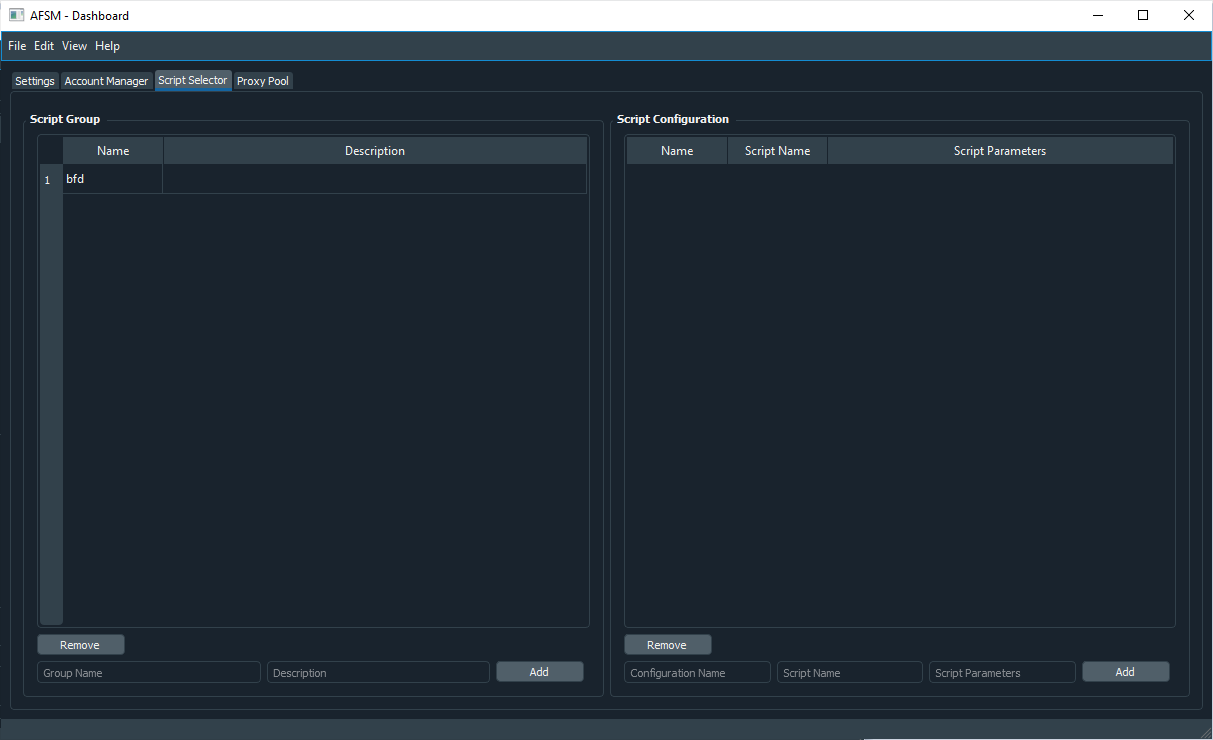
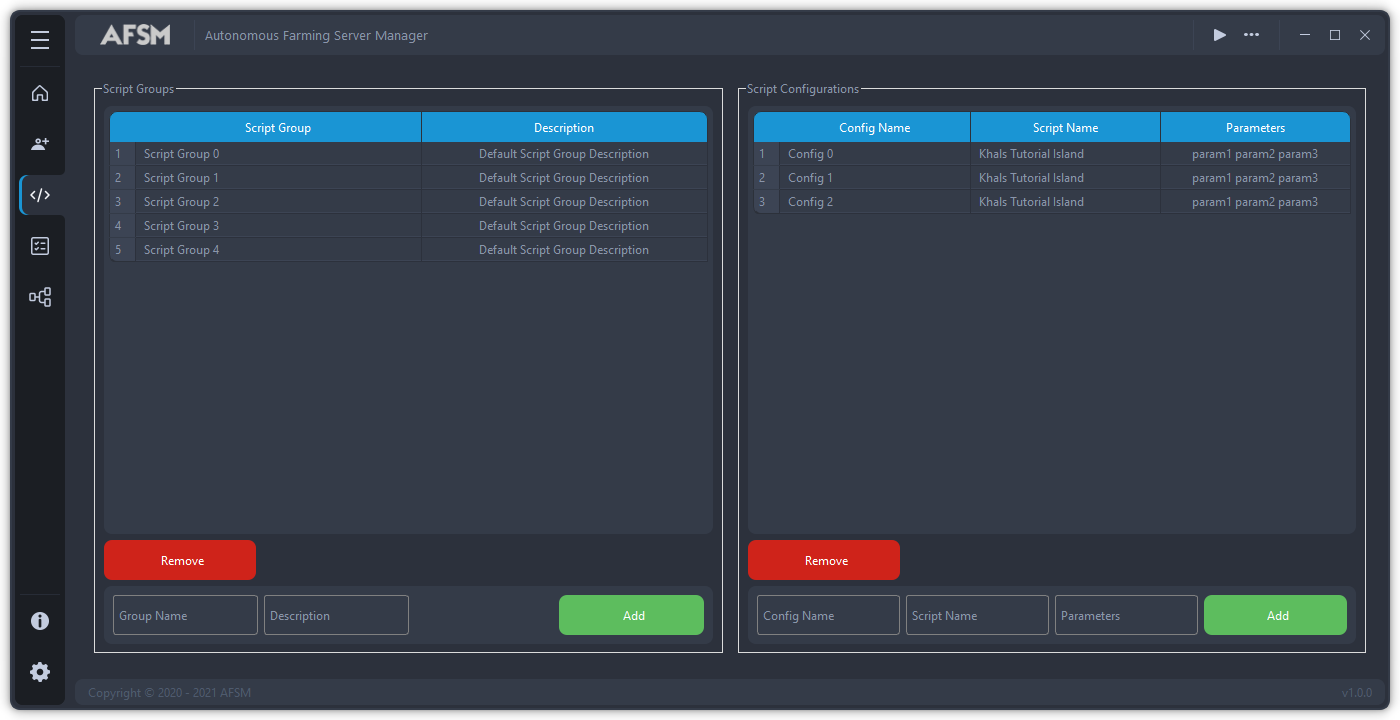
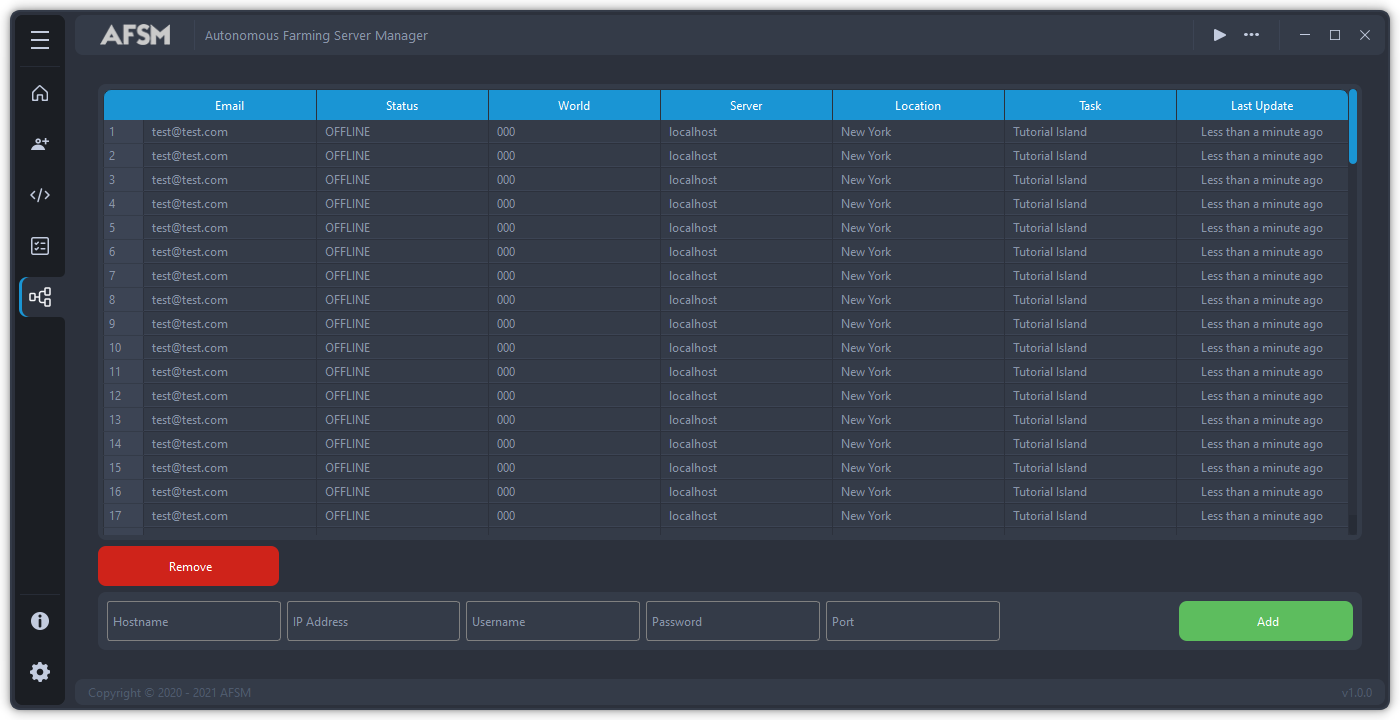
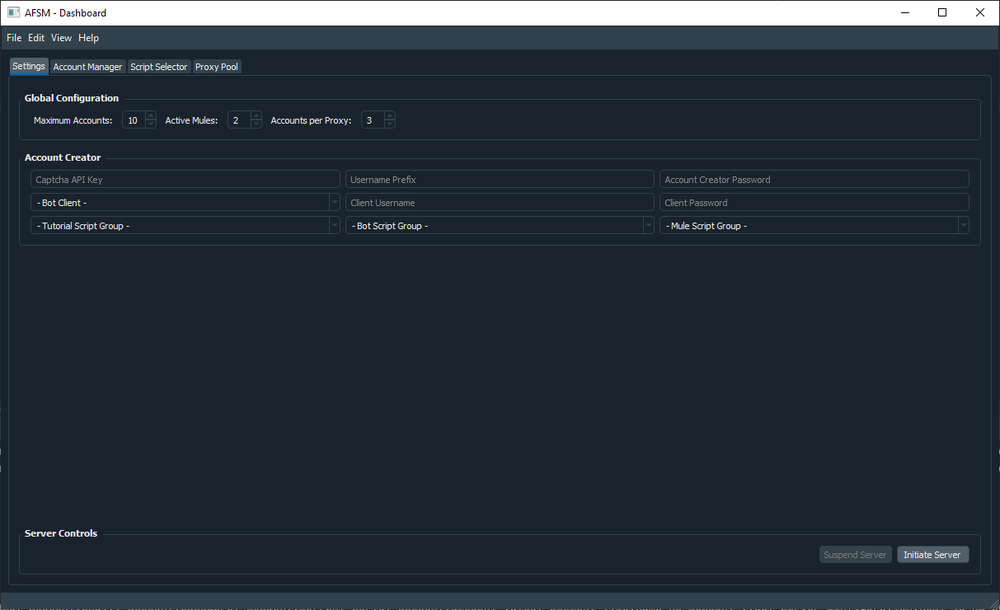
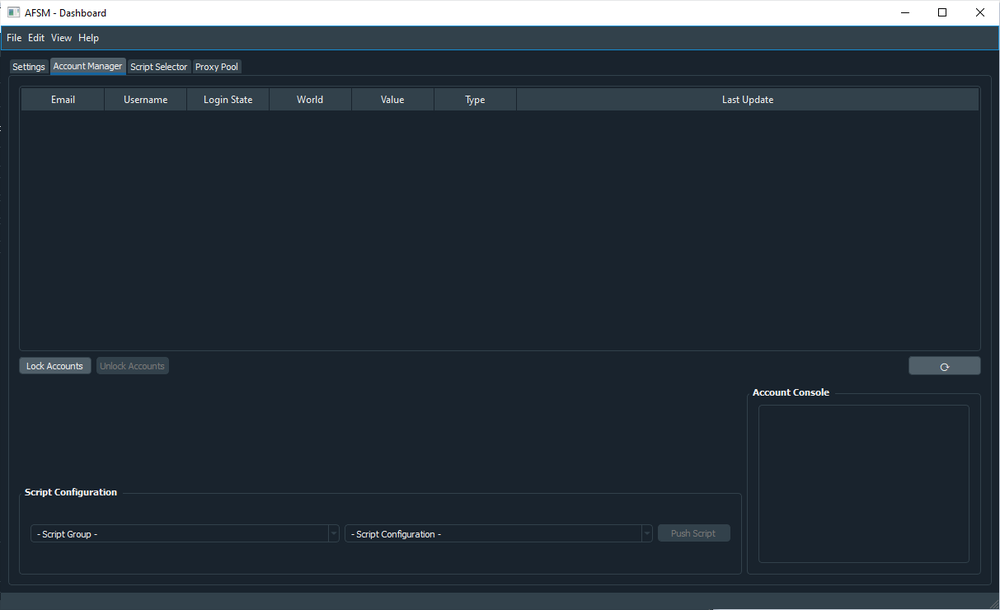
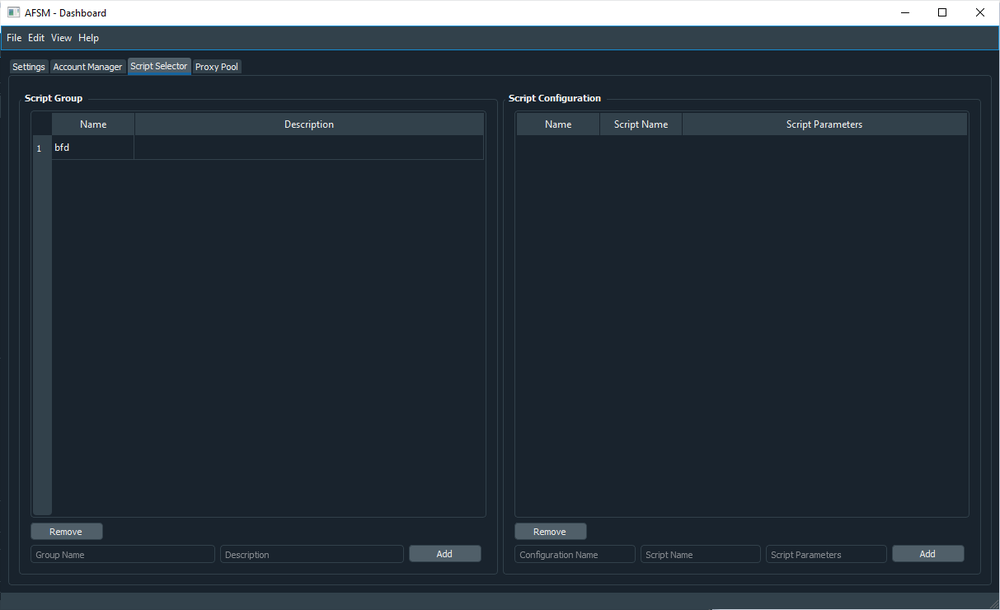
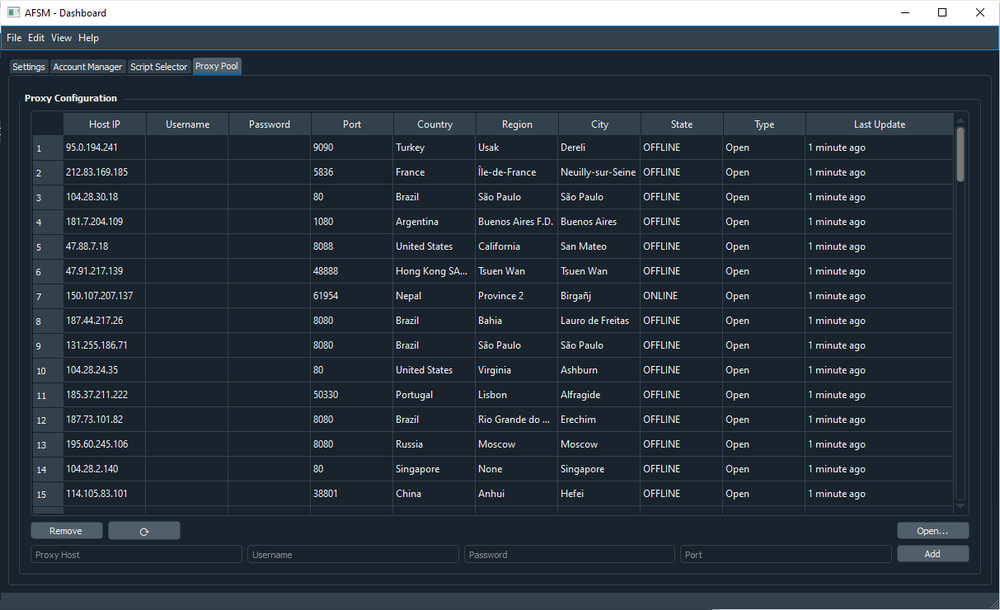
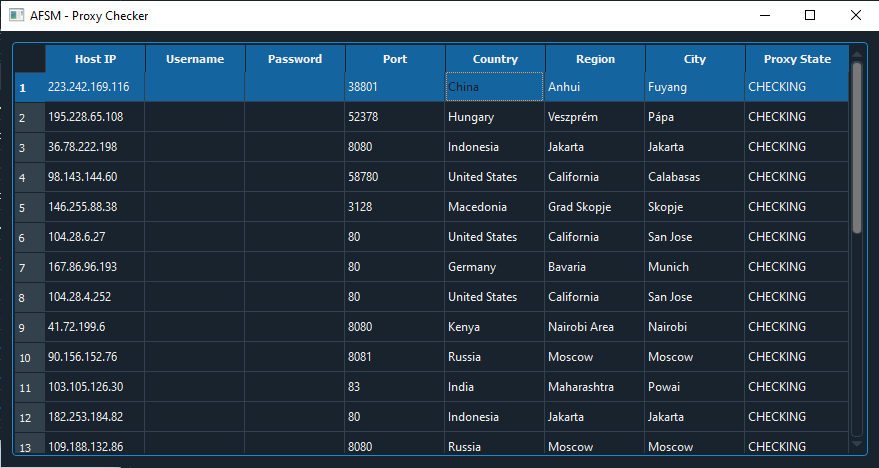
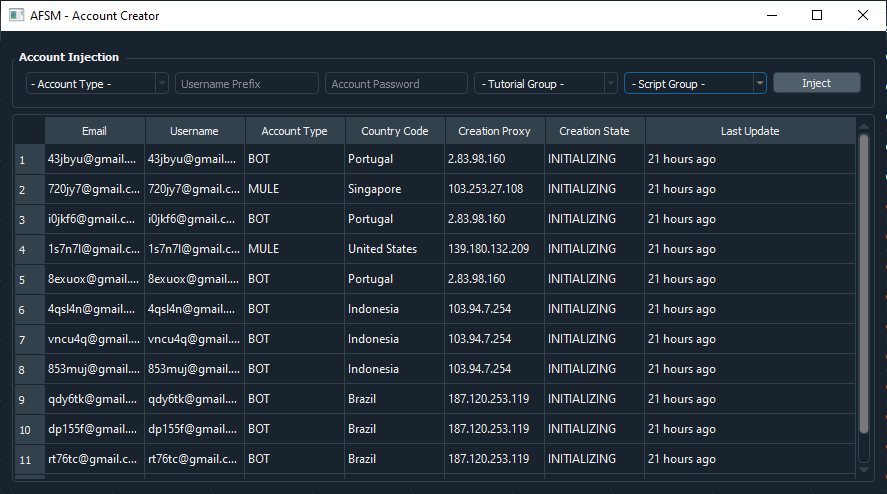
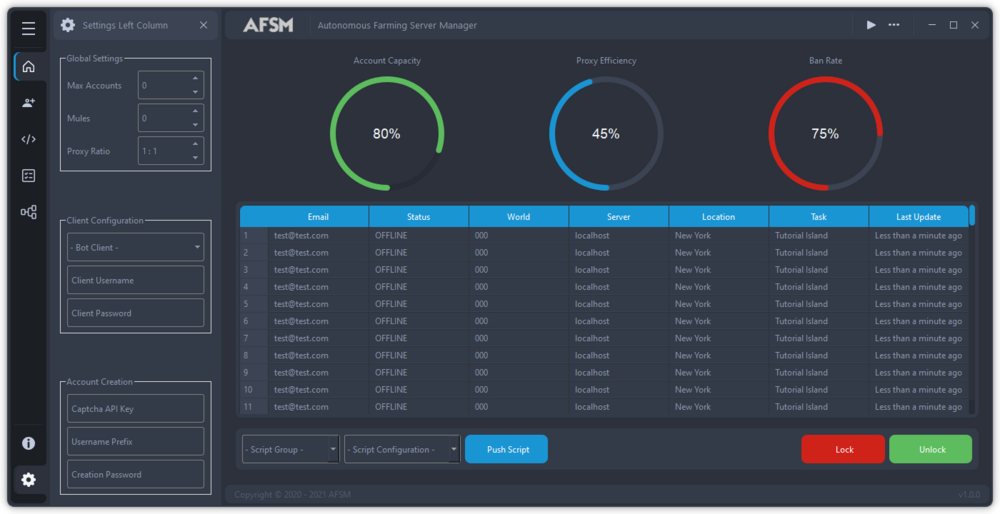
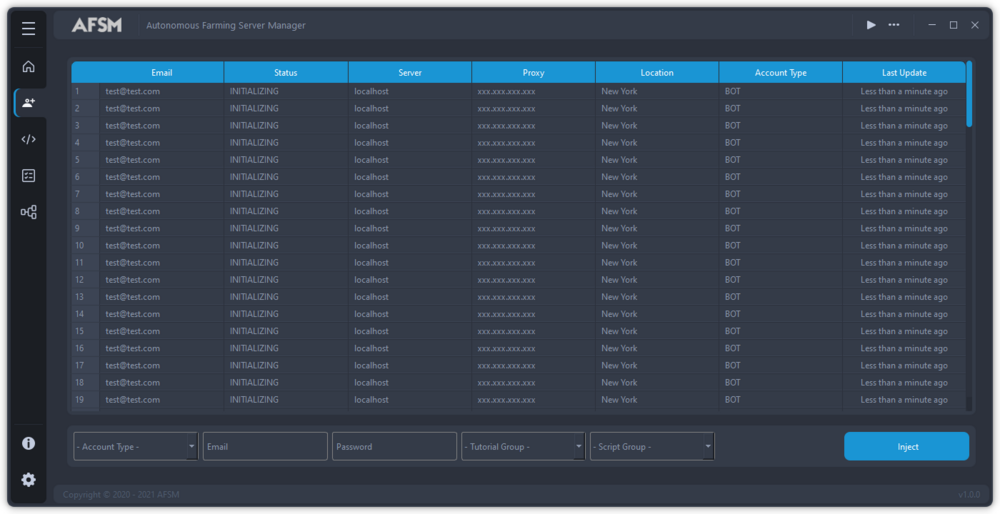
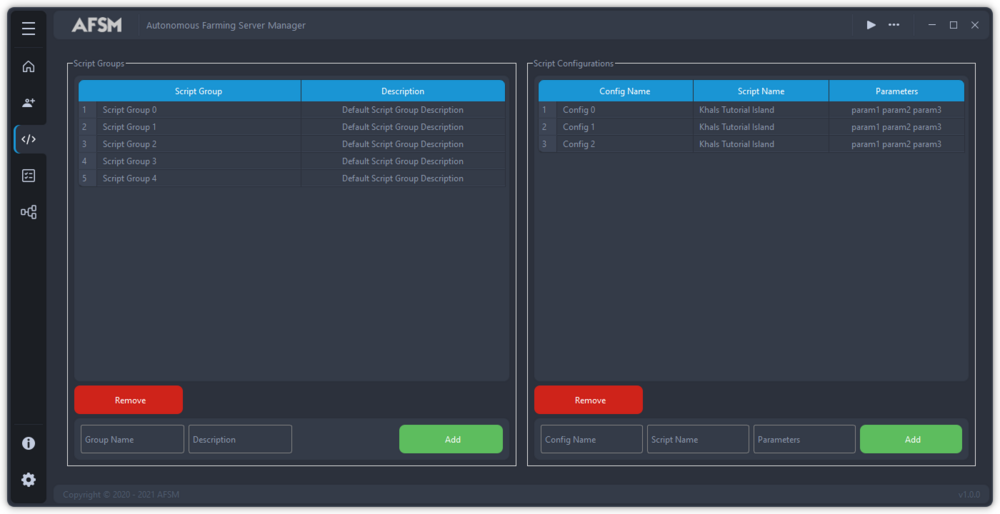
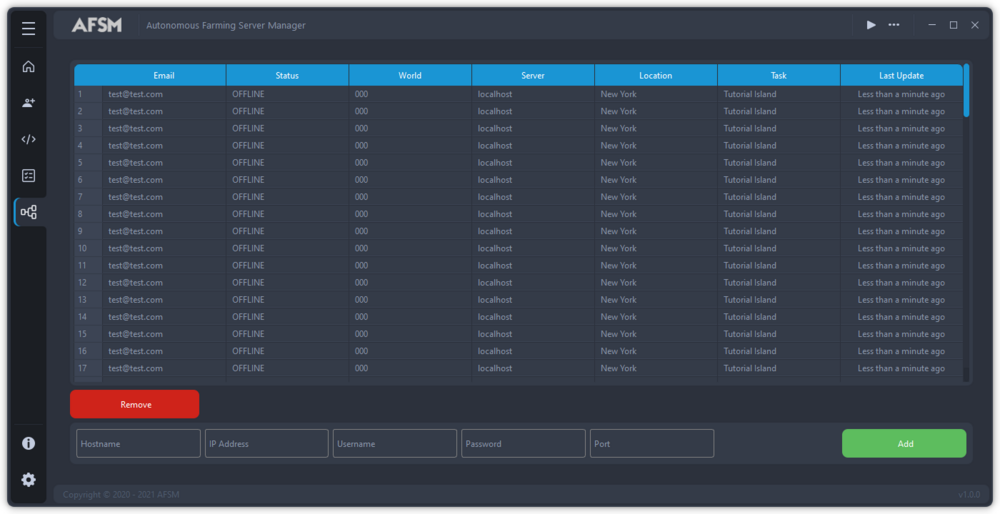
Brief History: I started working on a project that I've been meaning to take up since my earlier days of software development. I wanted to create a program that acts as a node in a bigger botting network, so to say. Essentially each node will have its own configuration and will converge to match the configurations saved from the main server, whilst using a central database to store all accounts generated and maintained by each node. After each account is created the client session manager will initiate a session with the configurations needed to setup, and then eventually gold farm. Logic: Essentially the database will have a proxy pool, these proxies will be checked on regularly to ensure usability; If a proxy is currently being used by a bot then obviously that proxy will not be checked as the bot will send a keepalive every 5-10 minutes. Our setup logic includes a max_accounts field, max_mules field, and an accounts_per_proxy field - These fields along with several other configurations settings such as captcha key and username prefix will all be saved as a server configuration. If usable_accounts < max_accounts the account creation process will begin If account = offline -> Initiate session_manager At this point, if an account is banned the server will automatically re-converge and create an account to fill that spot Requirements: Database for Records Main UI (Dashboard) Proxy Checker Account Creator Session Manager Progress _______________________________________________________________________________________________________________________________________________________________________________________________________________________________ EDIT (09/02/2021): Completely revamped the UI and started rebuilding the database using a nosql model (Firebase) PSA: I'm currently looking for developers and graphics artists to help continue this project. I will announce when beta testing is ready so that you guys can try it first before this goes public! Changelog: V 0.1 + Everything functions synchronously + Database model + Insert Accounts into database _____________________________________ V 0.2 + Proxy checker is now Asynchronous [This means that all proxies that are expired get checked and updated simultaneously] + Server Configurations can be saved/loaded [This serves as a bot pool - each server saves a config using it's host ip which each account that is created on that pool is linked to _______________________________________ V 0.3 + Accounts are initialized and inserted into the database, they aren't currently created on the actual RS website - YET! _______________________________________ V 1.0 + Revamped UI
-
First off in order to show your gui you have to reference it by a variable gui = mainUI(); Then you have to show your ui in your code using gui.show(); When you finish UI setup you call gui.hide(); So in order to show the UI again, you need to create a mouse event listener to listen within a specific area of the client (a paint button; use that area to listen for the event) and when the spot is clicked do the gui.show(); function again