

China Doll
Members
-
Joined
-
Last visited
Everything posted by China Doll
-
you using mirror mode?
-
yup, yup .. and ... yup. lmao yup, yup and .. yup. lmao
-
**** UPDATE **** Still going strong however done for today (10hours+) with this script so far flawless recommend.
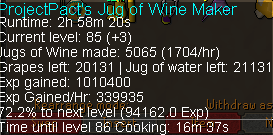
-
still going STRONG. update:
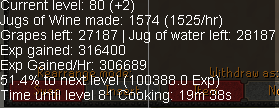
-
I use a paid VPN $12.99/Month which is a new ip hourly in certain states - I also flush my ipconfig via CMD which isnt much help but probably helps just something I always do hourly. There is really no wrong and right way to bot it's just how safe you make it, I make my bot patterns realistic making it regular breaks for a human like time. ALSO: when I make a new account with the VPN i make sure the email account, runescape account creation is all made on the VPN IP not my home IP. Mirror client I only run 1 bot, as I said breaks are human like - I think the problem is when people bot they bot for an unhuman like time-frame so it looks obvious. PLAY SMART, BOT SMART LADS.
-
your statement of don't use VPN's - why not? Using your home IP is just idiotic especially if you've been banned before from your IP it's flagged even if it's static or not... the VPN decreases your chances of getting banned. Also I bot 12 hours per day and use the mirror client which also decreases your chances, be safe bot smart.
-
so far so good.