Jefflhj
Trade With Caution
-
Joined
-
Last visited
-
My Osbot Client unable to use properly like others do , as mine are overlapping and i cant properly configure features or tick boxes because it got overlapped . Beside that i recently just bought a proxies n i cant paste the correct id to the port section with my port id. http://imgur.com/a/QXouV
-
can u display the fishing lvl as well when fishing in ur fishing script?
-
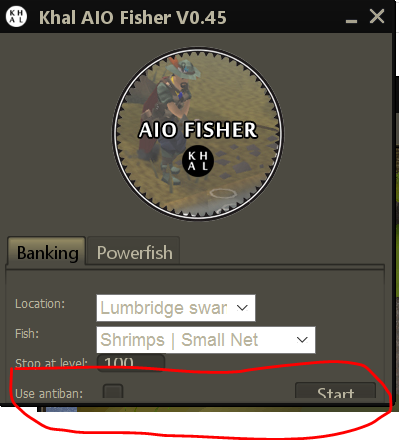
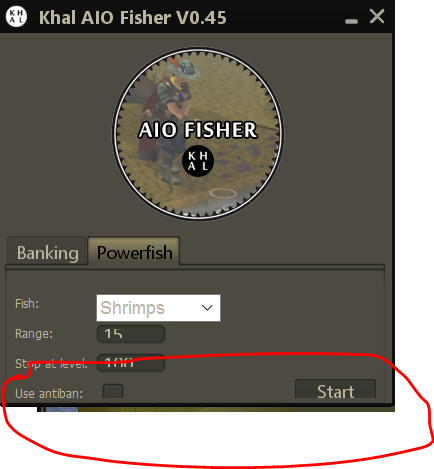
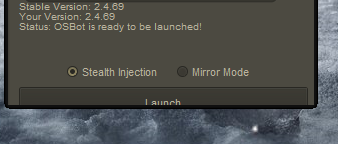
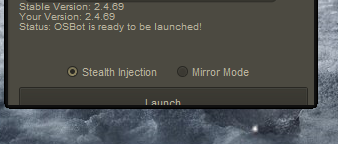
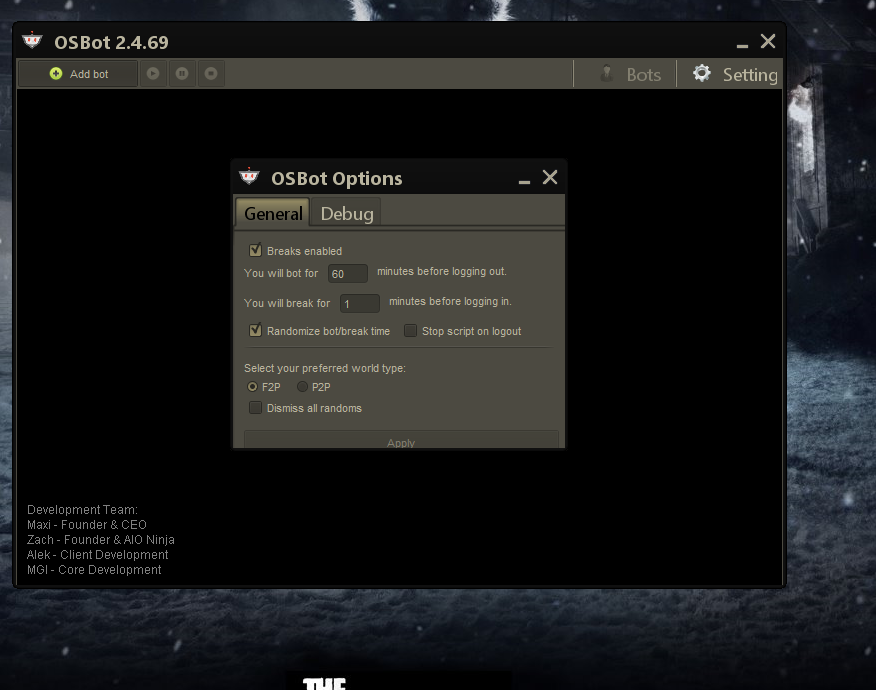
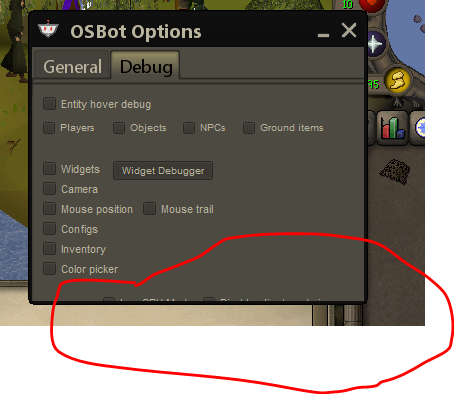
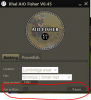
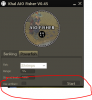
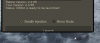
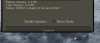
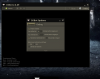
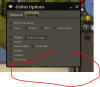
client in my 14 inch laptop is too small until i couldnt click the "option" button to see whats below. For Example 1 , this 1 whenever i try to open up the client which is too small in my screen The next 1 after i click "launch" , as u can see in the debug section , i couldnt see what is below in the red circle Example #3 , as u see here when i run thefishing script , the "antiban" features and the "start" button are barely for u to see it in banking and Powerfish sections. The Client is features are all hiddenn as the size of the client appearing to be small in my window 14 inch laptop even i hd adjust it to 100% normal resolution, pls make the client bigger
-
Khaleesi may i request u to change the window java script client larger because ur client in my 14 inch laptop is too small until i couldnt click the "option" button to see whats below. In ur fishing script of course.. ty ps ur script kick ass though but i couldnt tick the " antiban" features as the cloent too small for my resolution even i adjust to minimum 100 percent