mojacheee
Members
-
Joined
-
Last visited
-
Ended up getting a temp ban right when I hit 98 thieving. I have been kinda suiciding to grind out the last 2 levels so that's definitely why. Had no problems with 8-10 hour days 5 days in a row every week; looks like they caught on to me though. Will still be using the script to finish up 99 because I'm lazy. Will keep you posted.
-
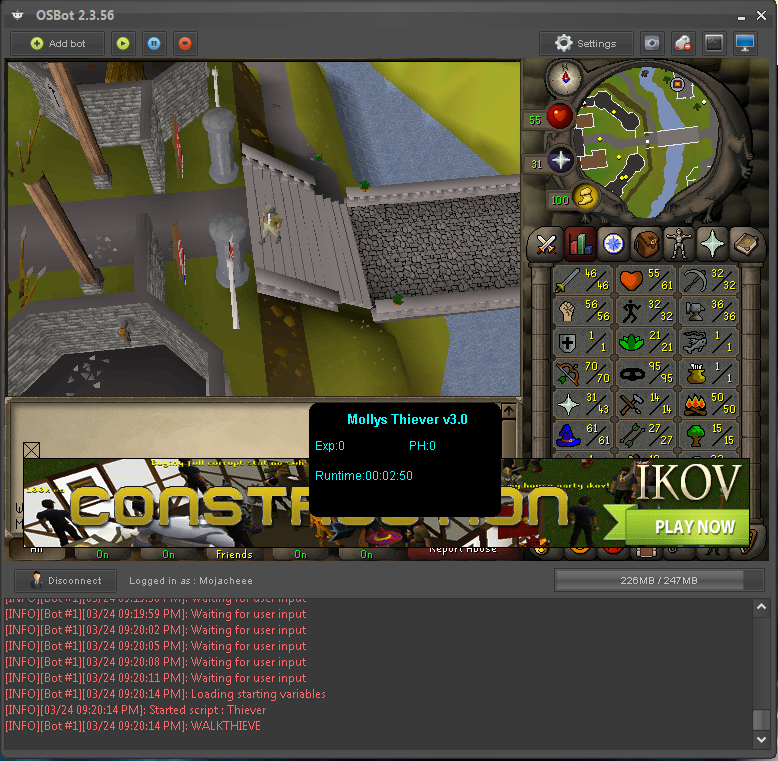
Had the same bug but in the opposite direction, log just said WALKBANK and it was standing where the paladins are when it should have been going back to the bank. Sorry I didn't get a picture this time.
-
Did seem to happen again

-
I screenshotted a 15 hour proggy on my account that is 95 thieving solely from using this bot. I didn't end up saving it though . Anyway I just started at the Ardy heroes and I should be able to post some long ones today when I get home from class/work. I have had no problem botting this account 10+ hours a day every day. On a side note: before I tried heroes I tried out Paladins and the bot just ran to the Ardy castle and stopped. Edit: May have just been a 1 time occurrence, I tried it again there and it worked fine.