VoltorGantuan
Members
-
Joined
-
Last visited
-
Deaf, Would you rather have a string tied around your big toes and pull your toes right off, or have the string tied around your toes and have your toe skinned to the bone but will heal with time
-
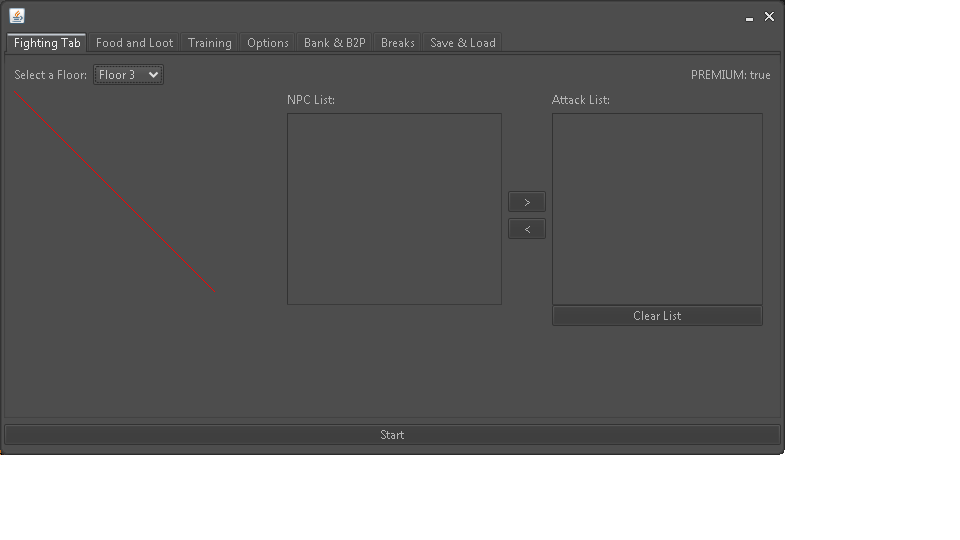
Thanks for fix about GUI not loading, Now this problem is occuring. I tried restarting client a few times same problem each time. Only the map in floor 1 works the rest get a red line going thru it like this.
-
After I choose what account to use it says loading GUI and won't load that GUI. When I try turn bot off (red square) it freezes the whole client and I have to ctrl+alt+del the client. Just loaded the GUI now and it has a red line thru the maps. Plus when I try and use this bot in spiders on level 3 it just sits around and jumps between doors and doesnt kill the mobs This bot needs an update. it is trash as is. Used to work real nice
-
Love this script, purchased it last night and it works almost flawless for me. One concern I have is that when I have it picking up items during combat it looks very bottish. It attacks the mob once then runs back to the spot where the last mob died, loots items and then runs back to the monster I just attacked. Am I doing something wrong in the GUI or is this not fixable? Anyhow its amazing will be using all the live long day