yfoo
Scripter II
-
Joined
-
Last visited
Everything posted by yfoo
-
Thanks guys, I ended up using the mouse position display and hardcoding it. I'll remember this.
-
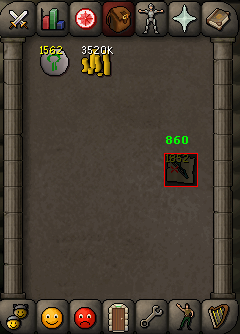
The client is able to highlight the bounds of interaction for items in the inventory. What class/methods would I use to obtain these bounds?
-
Hi, I just started playing OSRS ~3weeks ago but have played/extensively botted back 6-7 years ago when Rs3 was still Rs2. This was also back when RSbuddy was a botting client and I was script kiddy. Now as a software engineer, I joined OSbot because I wanted to make my own scripts and get a few 99s. As a personal rule, I am not allowed to use anyone else's scripts, therefore any scripts I run are my own creation. If people are intrested I am willing to make my scripts open source along with progress updates on my account. I'll be botting in mirror mode to presumably mask the usage of a 3rd party client. For my Hello World script for OSbot's API heres a simple high alcher: https://github.com/PayPalMeRSGP/HelloWorld_OsBot. Currently it only alchs magic longbows but I plan to modify it tomorrow to include a paint and an item selection interface. Furthermore to make the script less deterministic it already uses a normal distribution method to generate a random interval between click intervals. Thank you for reading this, and good luck with goldfarming and inflating the runescape economy.