pvefaith
Members
-
Joined
-
Last visited
-
I agree with Jesse Ice and YoloSwag in some aspects. Jesse has the proper base quest lines but you definitely want to train attack rather than quest it. So take the xp you get from what you absolutely have to do - monkey madness, lost city etc. But I wouldn't bother with some of the other quests like vampire slayer. I do reccomend starting with waterfall quest or fight arena just to save yourself some time in the beginning stages.
-
Still much appreciated I just bought this computer recently and its something a tad different than I have ever had before. It is a desktop, however it doesn't exactly have a "tower" instead it is literally a box about.. 1 foot x 1 foot and about.. 5-6 inches tall. If anyone else reads this and knows anyway I could upgrade this type of computer, let me know
-
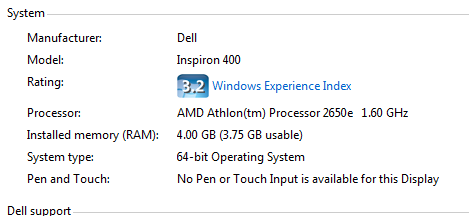
Okay so the entire purpose of this post is, I honestly know nothing about computers in the large scale of things. And I am new to the concept of running more than 1 bot at a time. I would just like to know realistically how many bots I could run on my computer. I will give what information I have on hand in the thumbnail below, if any additional information is needed for an accurate answer let me know and I will happily find said information. Thank you in advance for any and all help you can provide.